User guide
How to use PIV Hub
A quick tour of each area, with screenshots from the live app. Prefer it offline? Download the full PDF.
Today
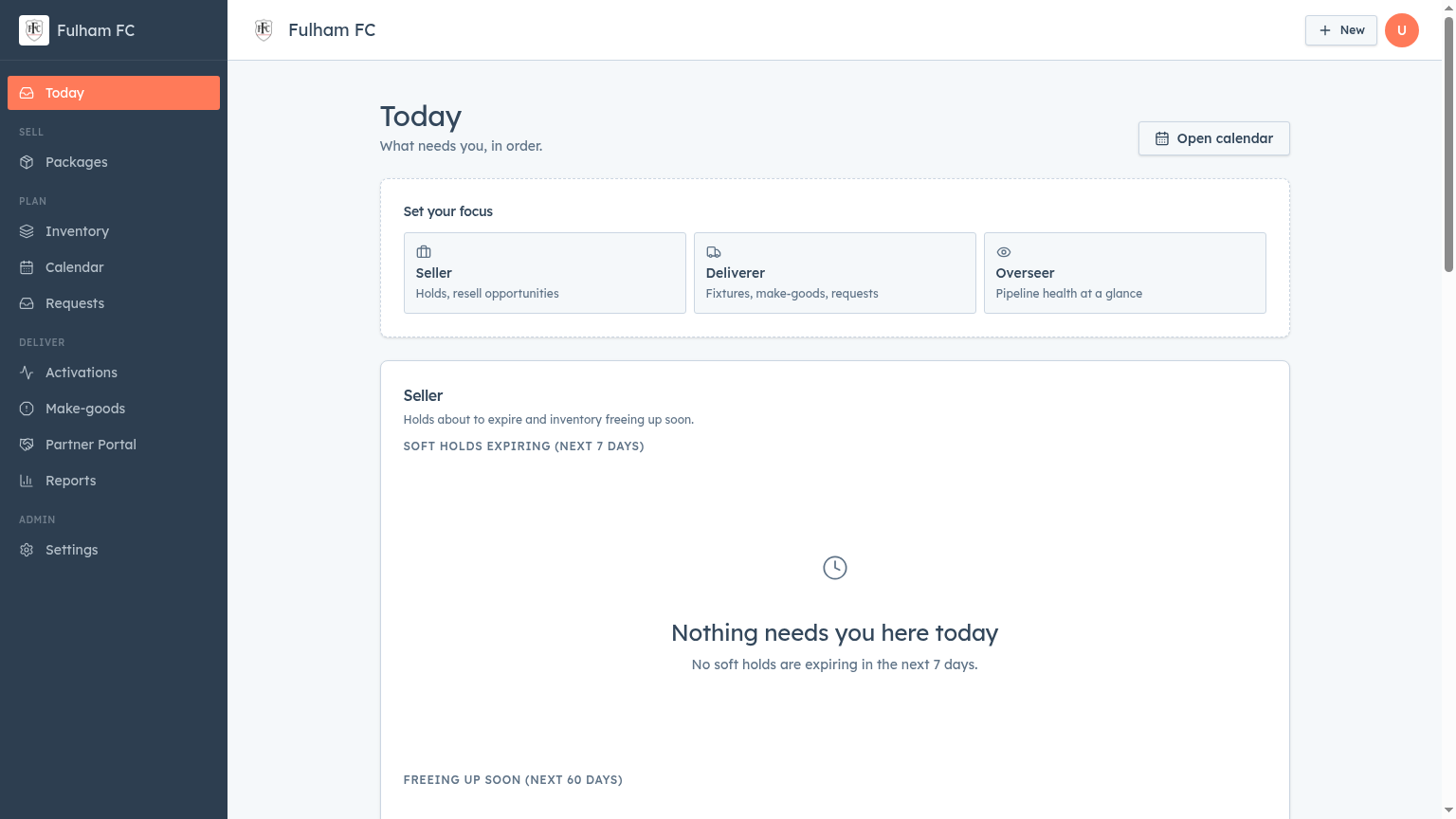
Today is your daily focus list — what needs you, in order. Pick a focus mode to filter what surfaces.
- Seller — soft holds about to expire and inventory freeing up in the next 60 days.
- Deliverer — fixtures, make-goods and requests that need attention.
- Overseer — pipeline health at a glance.
Packages
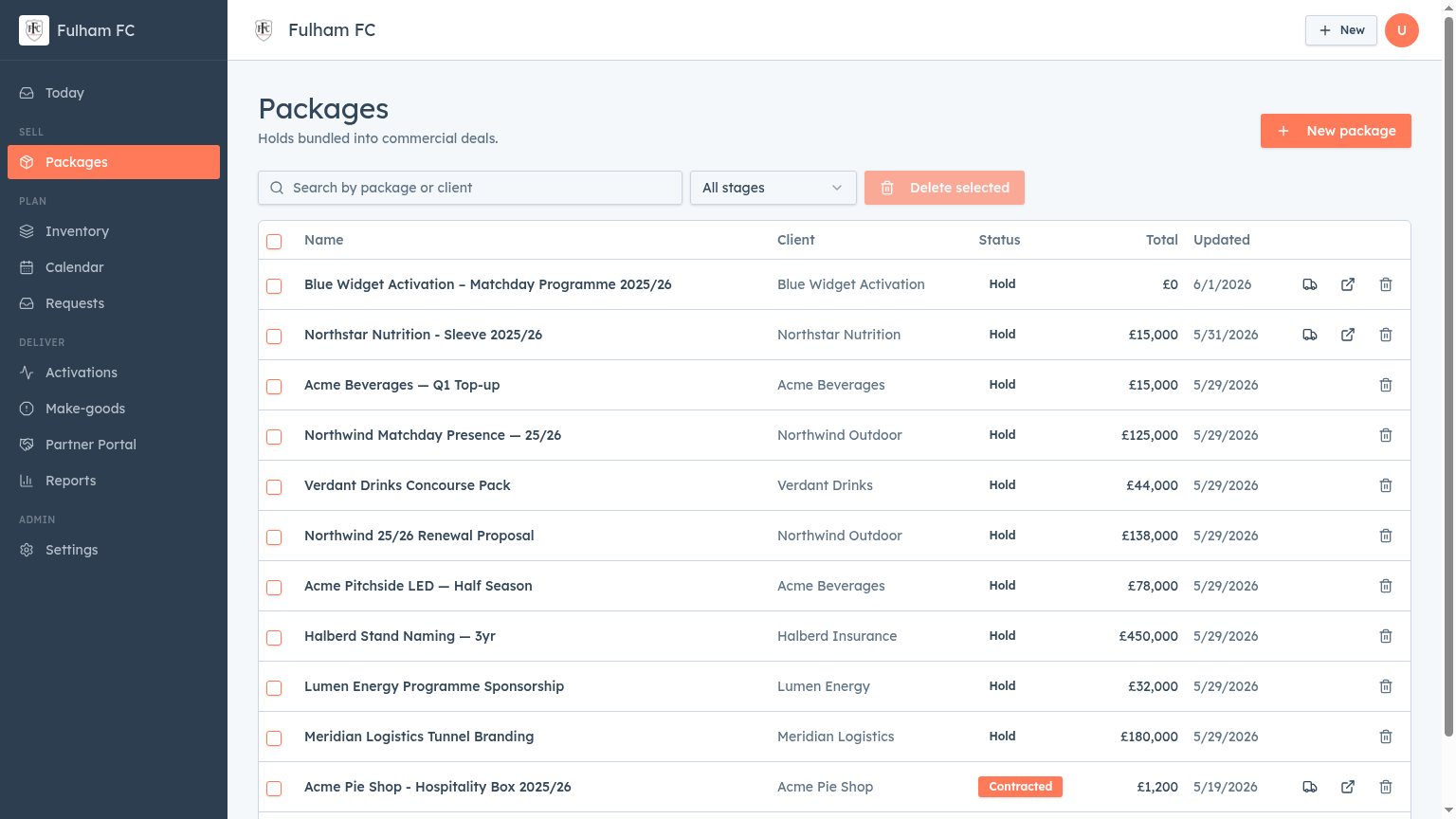
All commercial deals, bundled. Each row is a package with its client, status and total value.
- Search by package or client name; filter by stage (hold, contracted, invoiced, won).
- Click a package to manage assets, terms, sign-off, and partner handoff.
- Use New package to start a fresh deal from scratch or from inventory.
Inventory
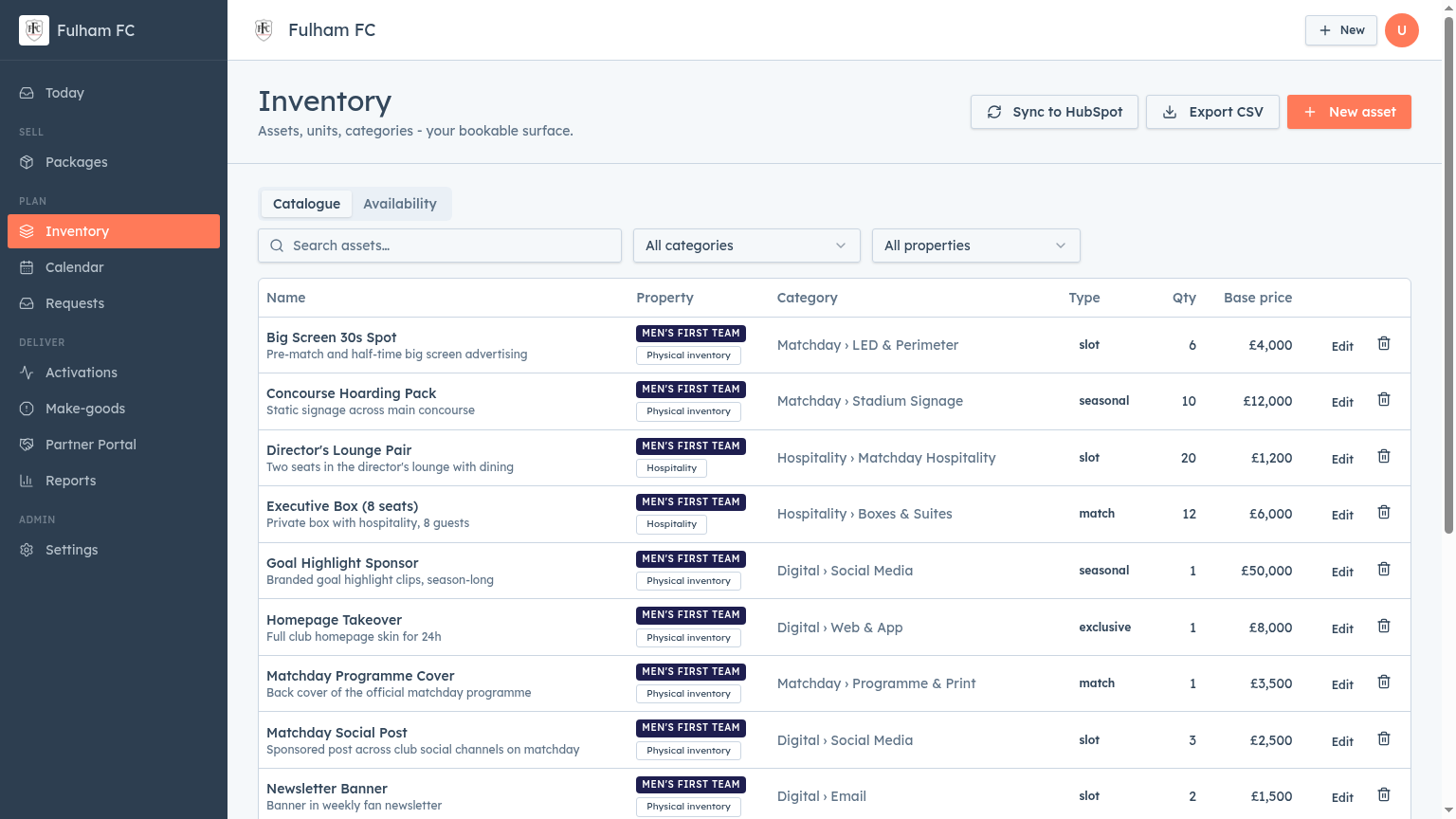
Your bookable surface: assets, units, categories and base pricing.
- Toggle Catalogue (master list) vs Availability (what's free per fixture).
- Filter by category or property; search assets by name.
- Export to CSV or sync to HubSpot. Edit an asset to manage units and seasonal coverage.
Calendar
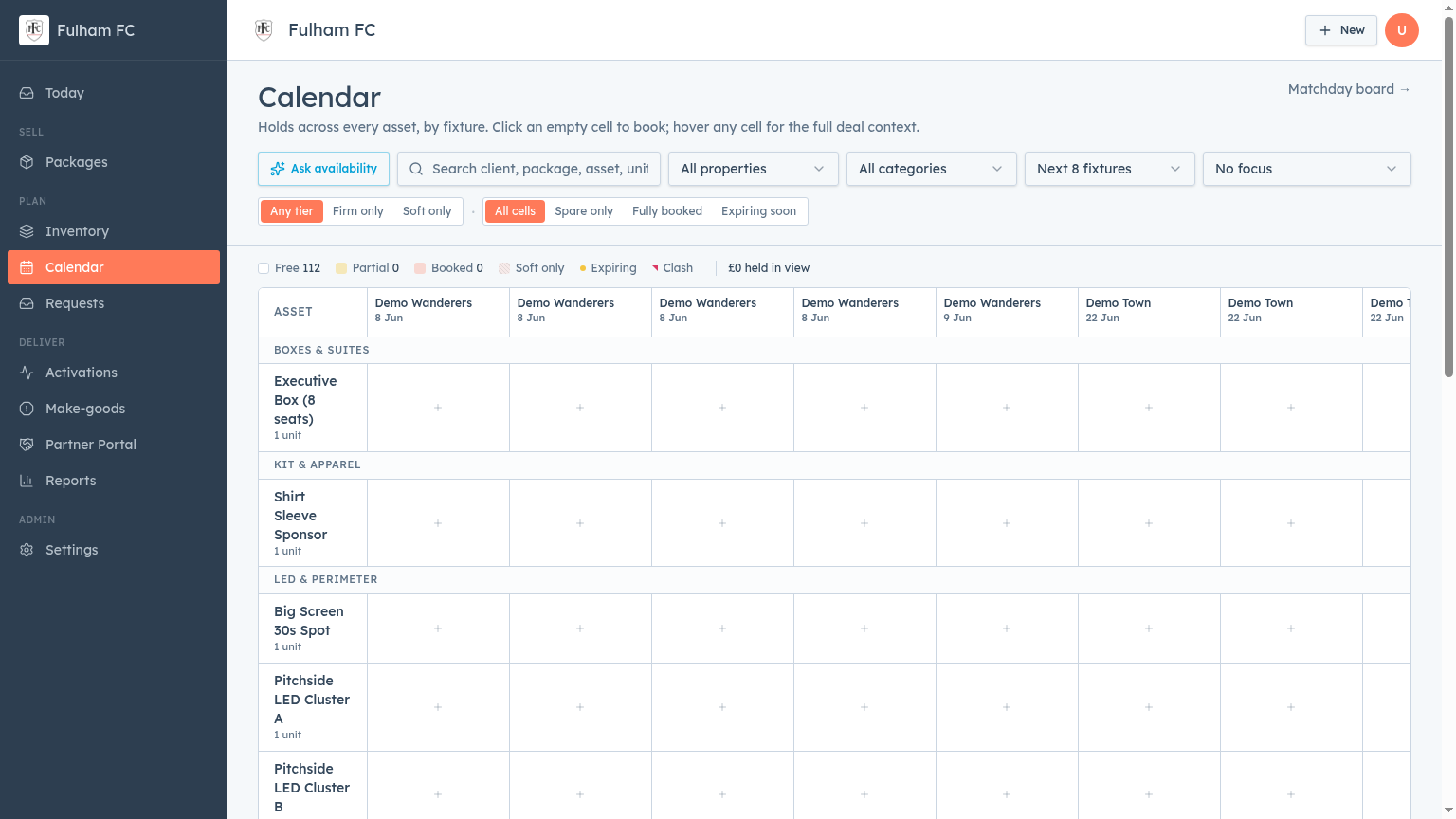
Holds across every asset, fixture by fixture.
- Click an empty cell to create a hold; hover any cell for the full deal context.
- Filter by property, category, tier (firm/soft) or cell state (free, partial, booked, expiring).
- Use Ask availability to query inventory with natural language.
Requests
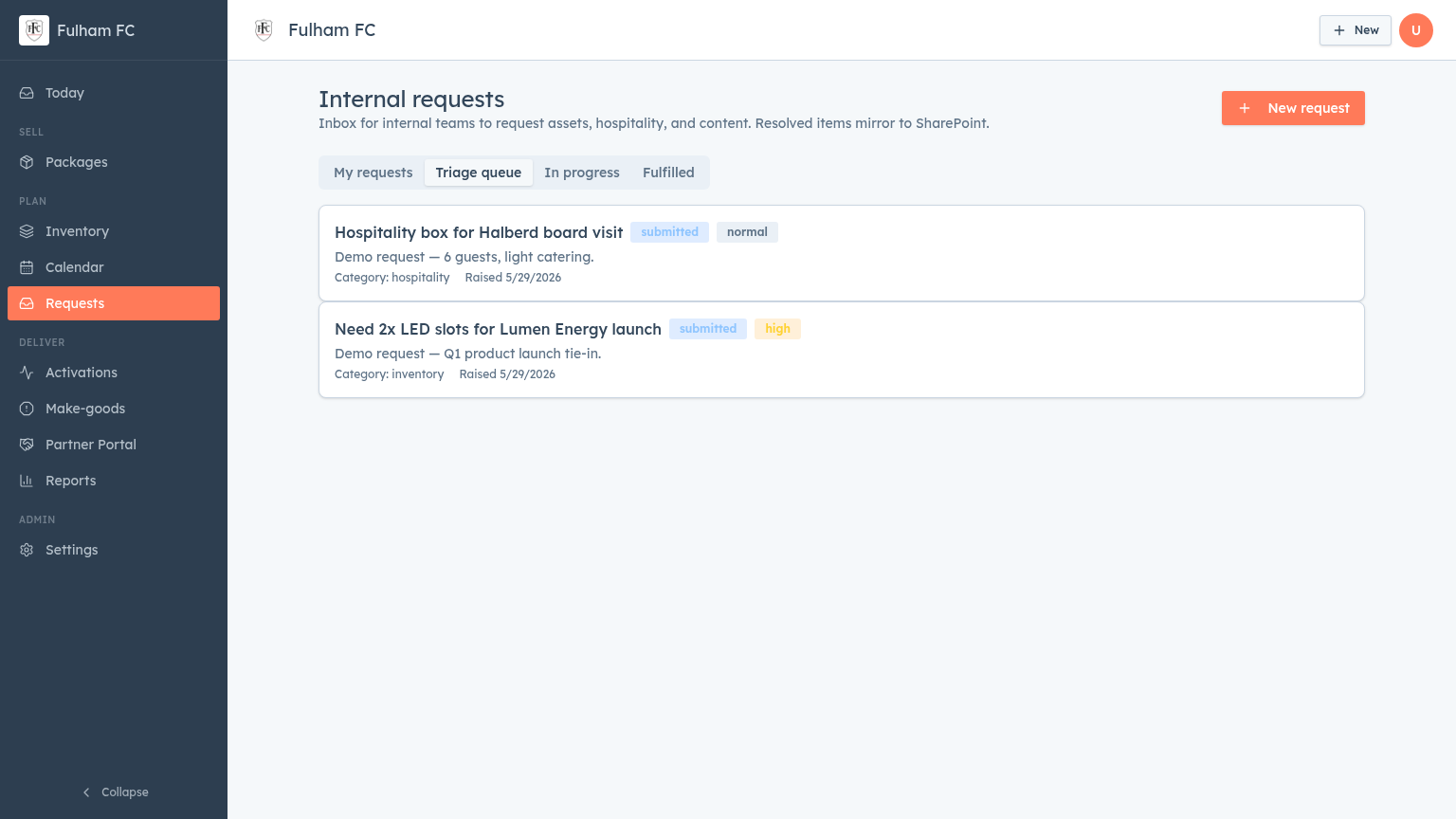
Internal inbox for asset, hospitality and content requests from other teams.
- Triage queue groups submitted items by priority.
- Move requests through In progress and Fulfilled as work happens.
- Resolved items mirror to SharePoint automatically.
Activations
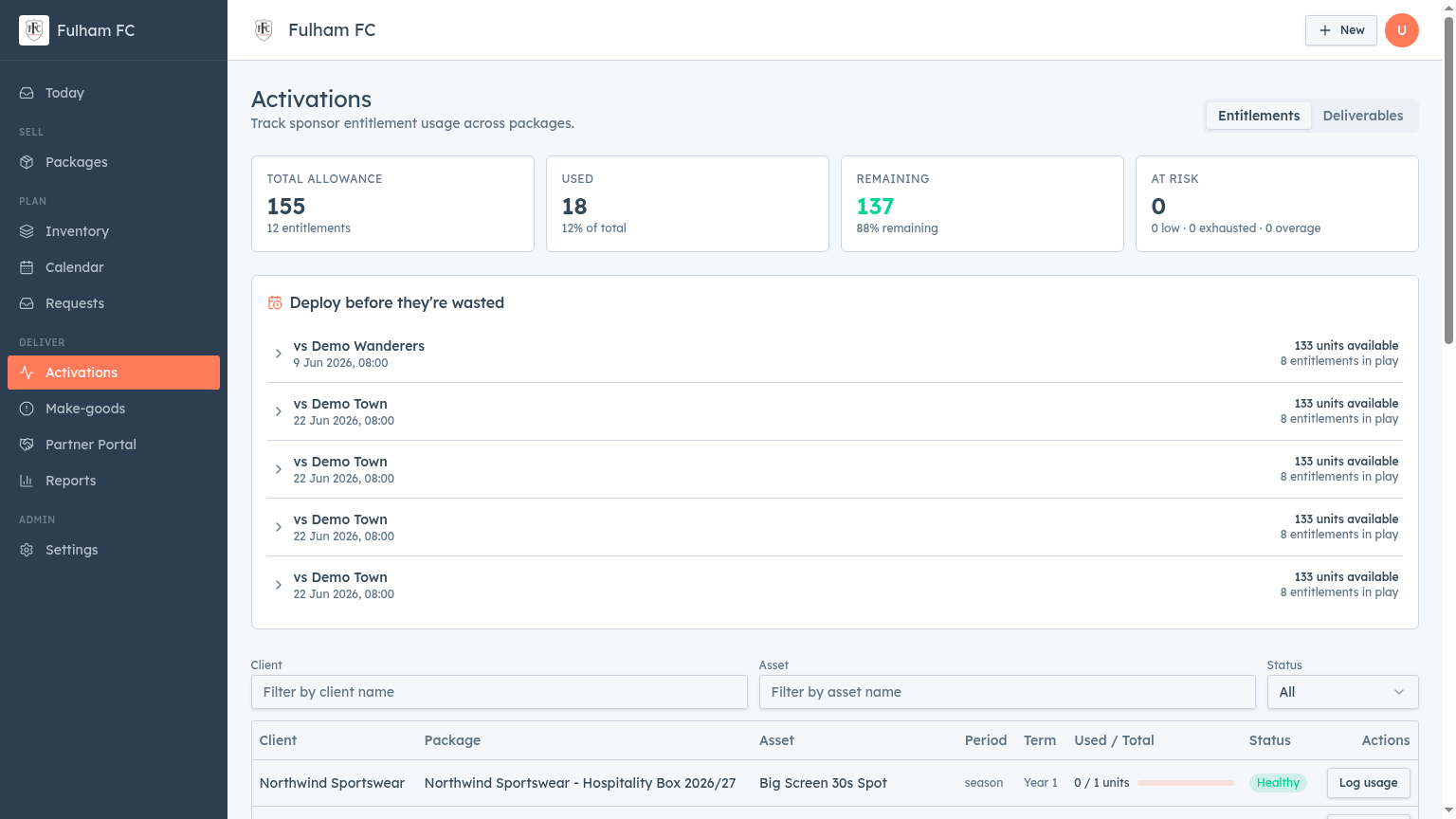
Track sponsor entitlement usage across packages so nothing goes unspent.
- Headline cards: total allowance, used, remaining, at-risk.
- Deploy before they're wasted groups upcoming fixtures with unspent units.
- Filter by client, asset or status and log usage from the row.
Make-goods
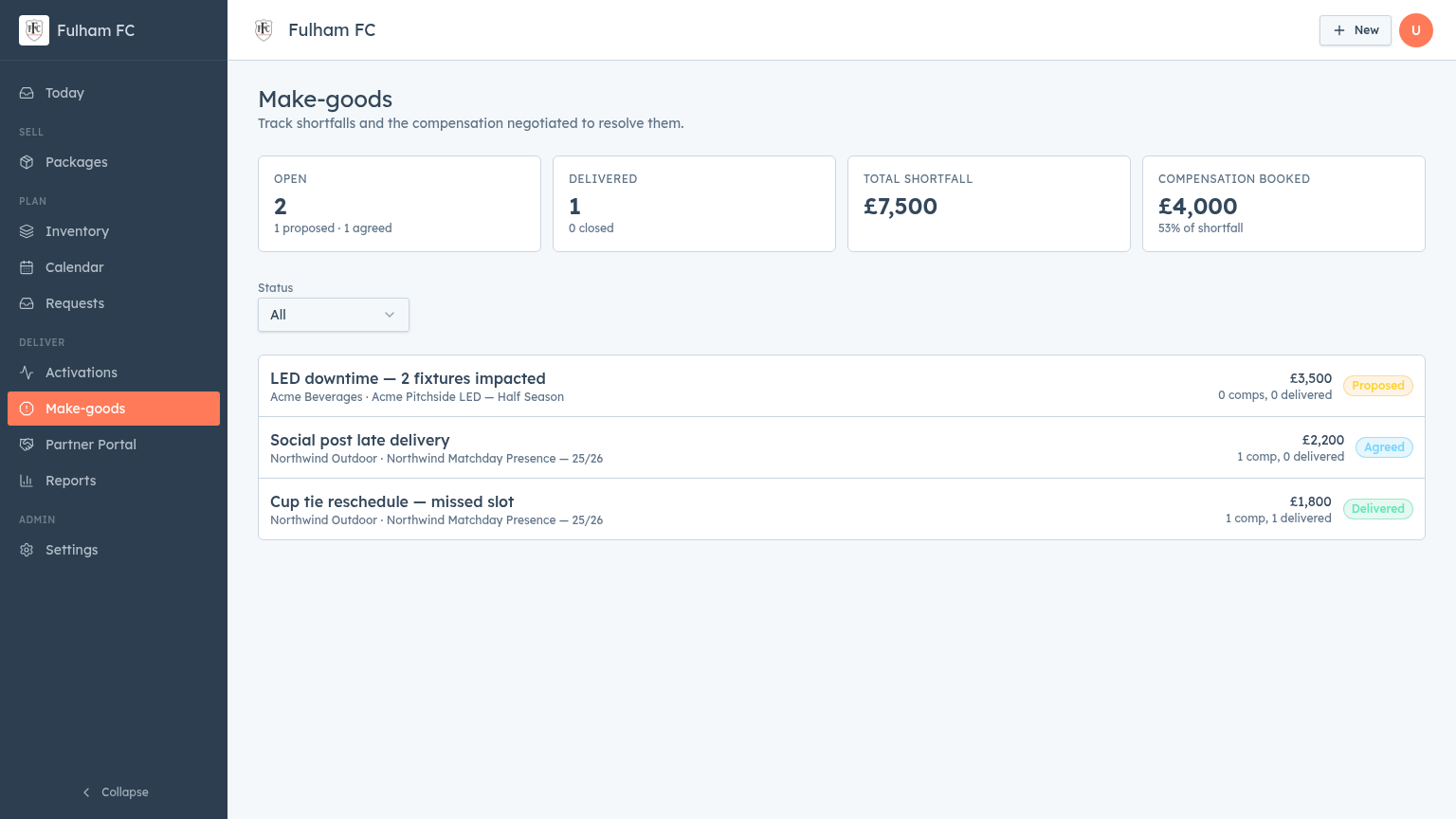
Log shortfalls and the compensation negotiated to resolve them.
- Cards show open vs delivered counts, total shortfall value, and compensation booked.
- Open a make-good to add comps, attach approvals and mark delivered.
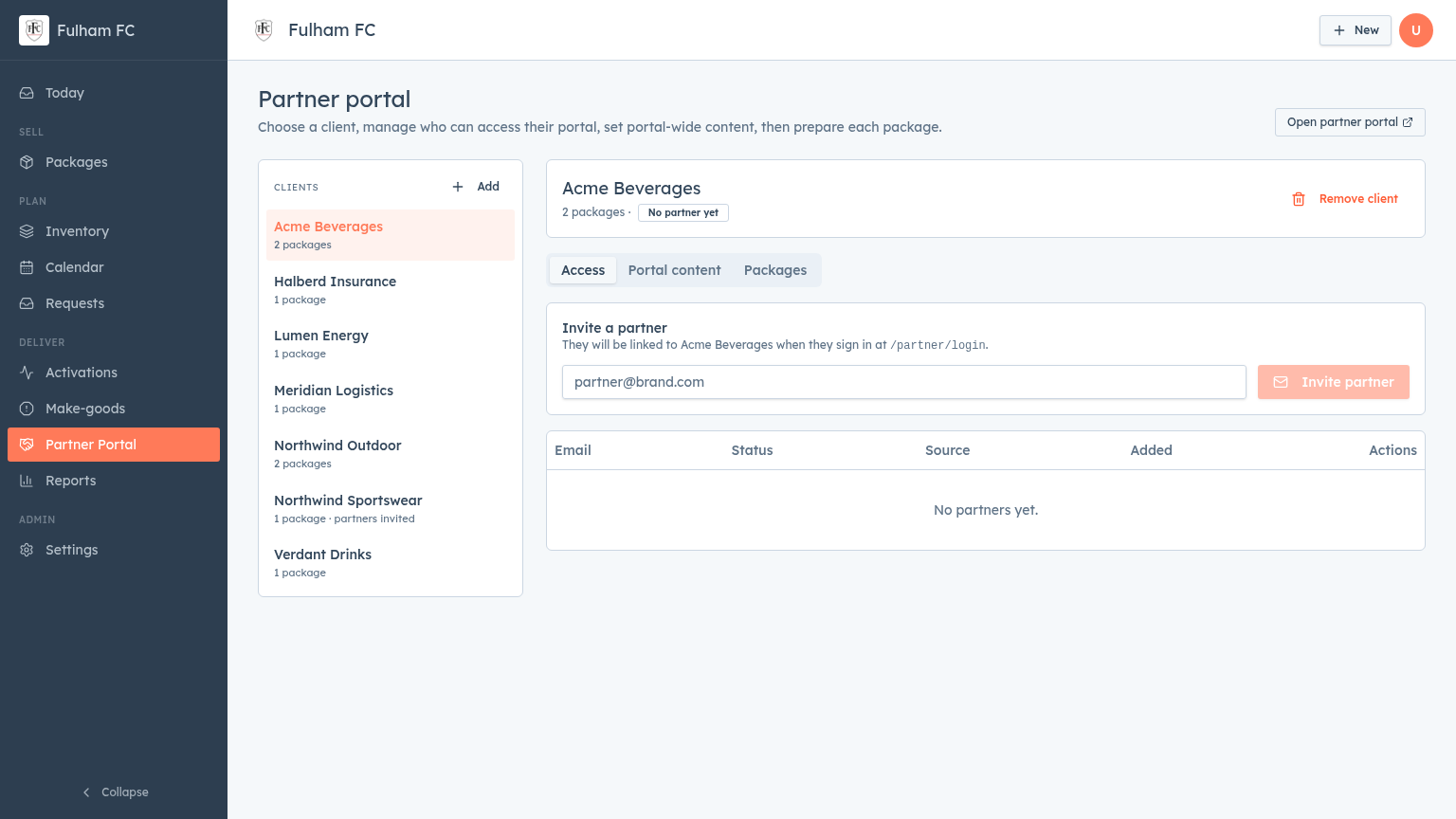
Partner Portal
Manage the partner-facing experience per client.
- Pick a client, invite partners — they sign in at /partner/login.
- Set portal-wide content (account manager, intro) and prepare each package's deliverables.
- Open partner portal to preview what they see.
Reports
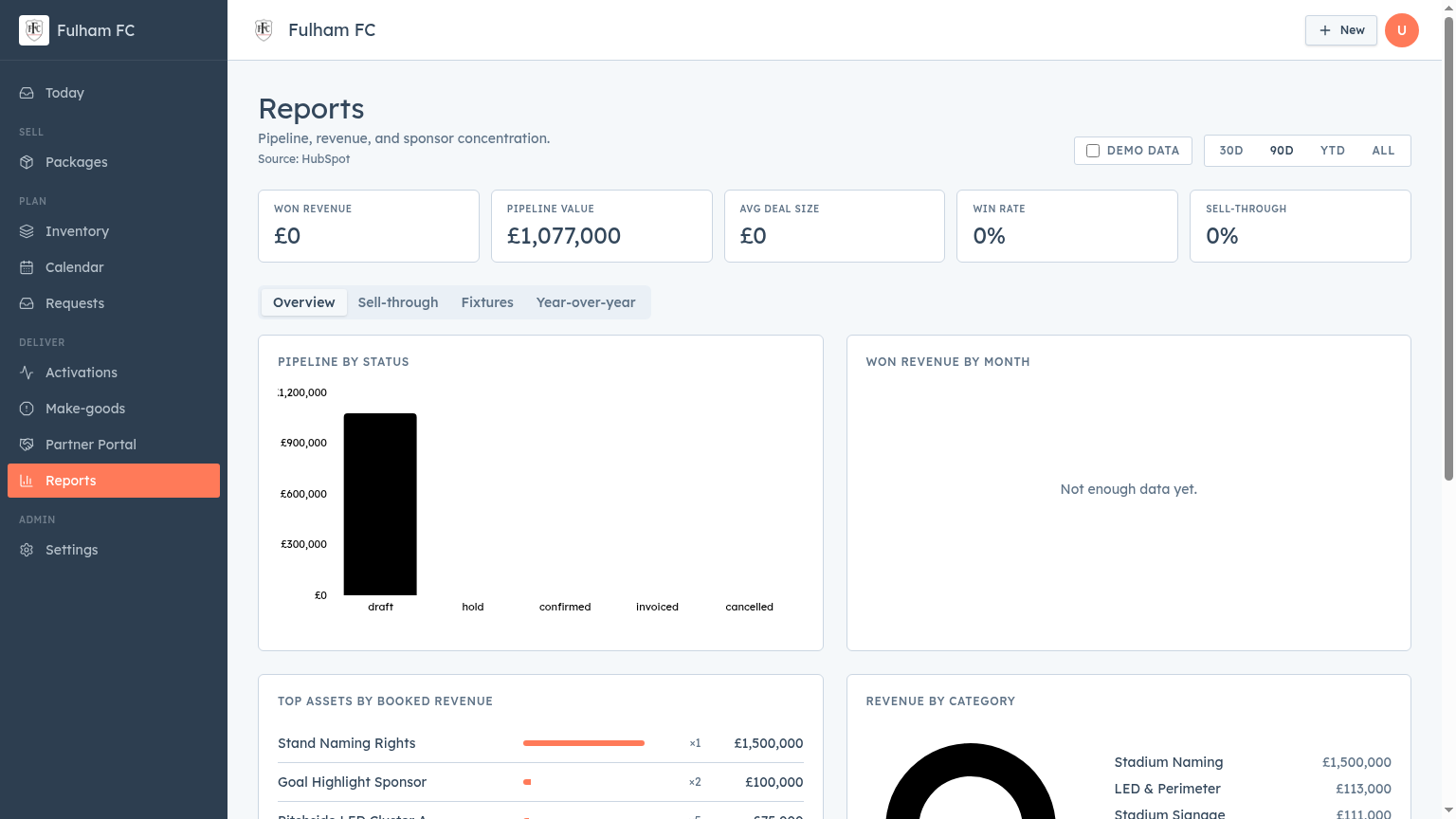
Pipeline, revenue and sponsor concentration — sourced from HubSpot.
- Headline metrics: won revenue, pipeline, avg deal size, win rate, sell-through.
- Tabs: Overview, Sell-through, Fixtures, Year-over-year.
- Date range: 30 days, 90 days, YTD or all time.
Settings
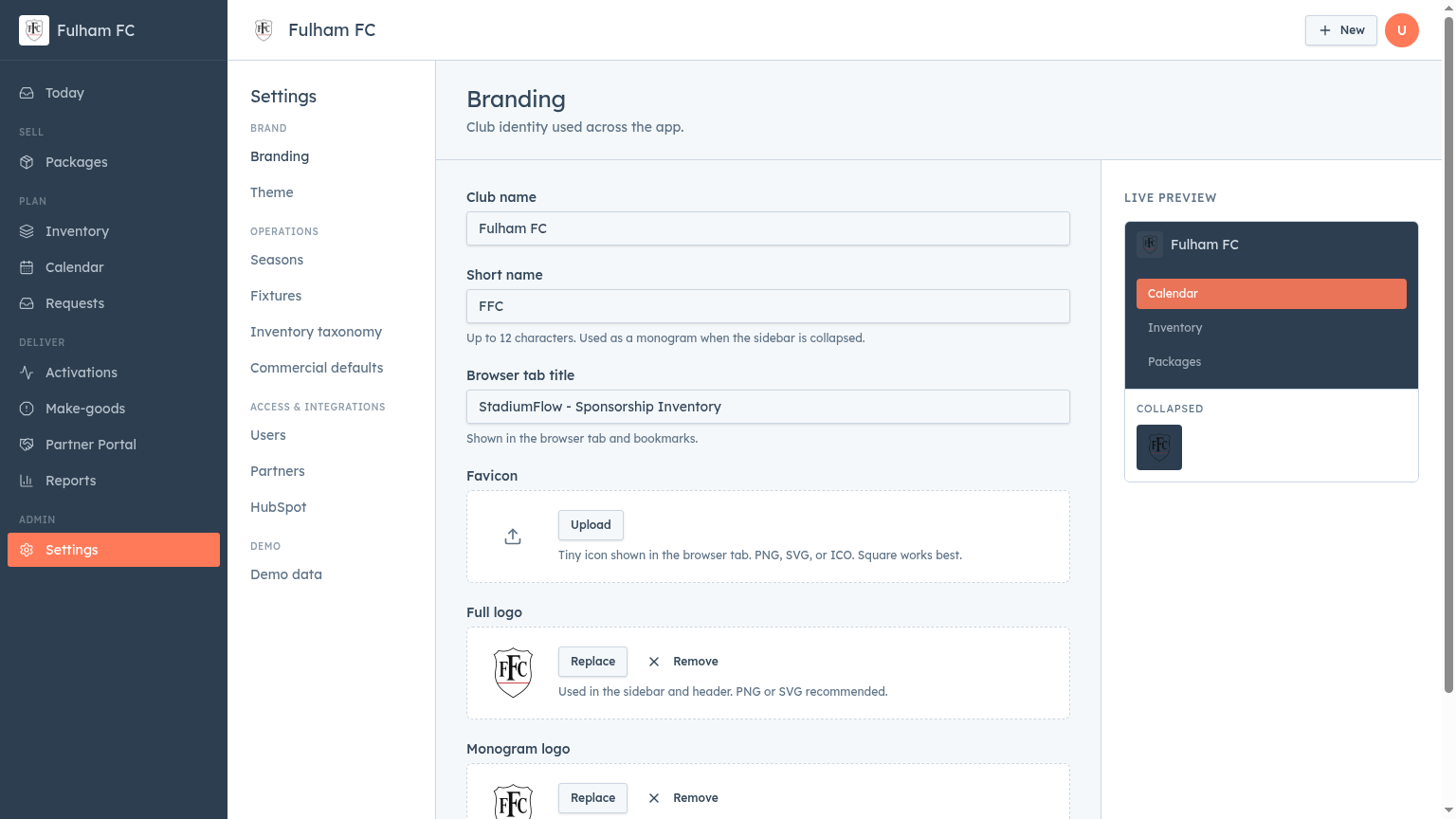
Configure how the hub looks and runs.
- Brand — branding (name, logo, favicon) and theme.
- Operations — seasons, fixtures, inventory taxonomy, commercial defaults.
- Access & integrations — users, partners, HubSpot.
- Live preview shows changes before you save.